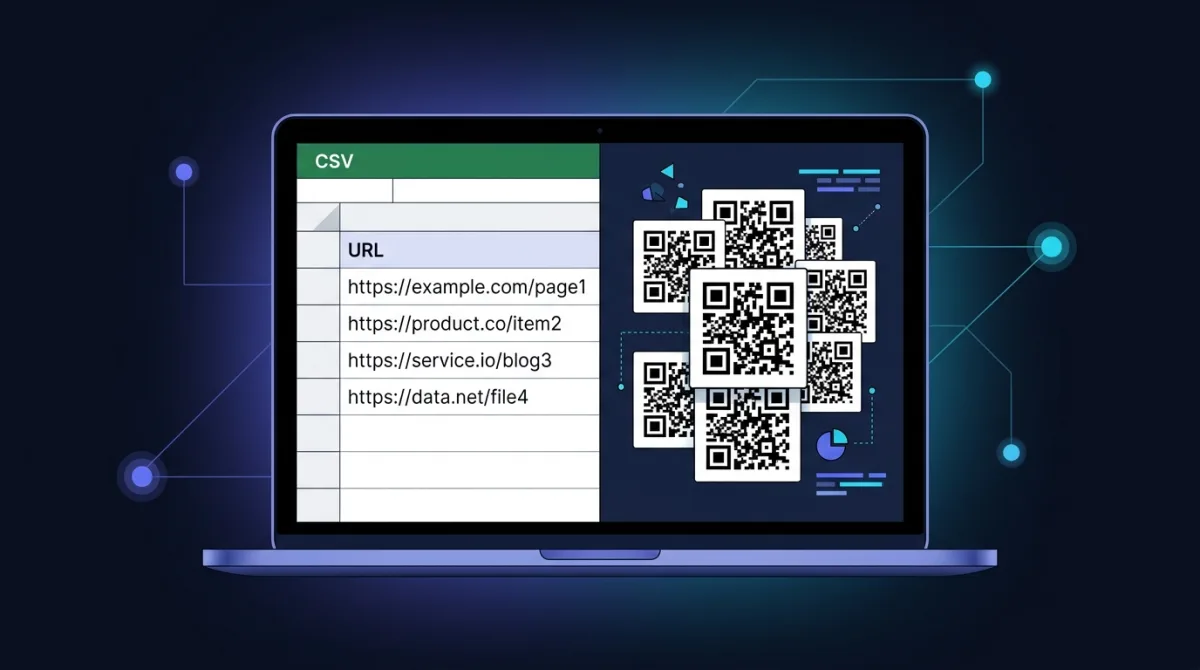
When You Actually Need Bulk Generation
Generating a single QR code takes 20 seconds. Doing it ten times takes three minutes. Doing it a hundred times is a half-hour of tedium with copy-paste errors in roughly 5% of the codes. Anything past about 15 codes belongs in a batch workflow — paste a column, click once, download a ZIP. The classic batch scenarios are event tickets, product labels, classroom resources, restaurant table tents, asset tags, voucher codes, and per-location marketing campaigns. If you are reading this guide you almost certainly have one of those use cases.
The economic argument is simple. A 200-row batch generated manually is roughly 70 minutes of clicking and downloading. The same batch through a bulk QR generator is two minutes. That is a 35x productivity gain for the same output quality, and the tool is free.
Step 1 — Build the Spreadsheet
Start in Excel, Google Sheets, or any tool that exports CSV. One column holds the value you want encoded — usually a URL. Optional second column holds a friendly name for the output file. Optional third column holds a category for downstream filtering.
https://yoursite.com/t/A4F-91X,ticket_001,vip
https://yoursite.com/t/B7K-22J,ticket_002,general
https://yoursite.com/t/C2M-44Q,ticket_003,general
For thousands of unique IDs, generate them with a formula. Sequential: ="TICKET-"&TEXT(ROW()-1,"00000"). Random hex: =UPPER(DEC2HEX(RANDBETWEEN(0,16777215),6)). Then concatenate onto a base URL with ="https://yoursite.com/t/"&A2.
Step 2 — Pick the Payload Format
The bulk generator does not interpret your data — it encodes whatever string you give it. So the payload format is your responsibility. Six common types and how to format them in a spreadsheet:
| Type | CSV cell value | Note |
|---|---|---|
| URL | https://yoursite.com/product/A4F-91X | Most common — keep under 200 chars per row |
| Plain text | ORDER-44912 | Internal IDs, voucher codes, asset tags |
| vCard | BEGIN:VCARD\nFN:Jane Doe\nTEL:+1...\nEND:VCARD | Build the string in a CONCATENATE column |
| WiFi | WIFI:T:WPA2;S:GuestNet;P:Welcome123;; | One per guest network or per room |
| SMS | SMSTO:+15551234567:Join our list | Pre-fill opt-in message per campaign |
| mailto:info@x.com?subject=Lead&body=Hi | Pre-fill recipient, subject, and body |
For vCards specifically, the safest pattern is one CONCATENATE column per attendee that builds the full BEGIN:VCARD ... END:VCARD string, using CHAR(10) for the line breaks. Test one card by pasting the string into a single QR code first — vCard formatting errors are silent, the code scans but the phone fails to parse the contact.
Step 3 — Export to CSV
From Excel: File → Save As → CSV UTF-8. From Google Sheets: File → Download → Comma-separated values. From Numbers: File → Export To → CSV. UTF-8 encoding matters if any URL contains non-ASCII characters (accents, emoji, kanji) — the default Latin-1 encoding from older Excel versions silently corrupts those characters and the codes scan to broken URLs.
Step 4 — Run the Batch
Open the CSV in a text editor, copy the URL column, and paste it into the bulk QR generator (one entry per line). Click Generate. Each code renders inline; click Download to grab them individually or use the bulk download to get every PNG at once. For batches over 50, repeat: paste the next 50 lines, regenerate, download. A 500-code event run takes about 6 minutes end to end.
If your batch is in the thousands, the browser becomes the bottleneck — at that scale switch to a CLI library. The Node qrcode package or the Python qrcode module both read a CSV and write one PNG per row in seconds.
Step 5 — Pick the Export Format
| Format | Best for | Scaling | Note |
|---|---|---|---|
| PNG | Screens, email, labels under 2cm | Fixed resolution (raster) | Default for most bulk tools; pick 512px or higher |
| SVG | Posters, signage, T-shirts, packaging | Vector — scales without pixelation | Mandatory for anything larger than a business card |
| Event ticket runs, label sheets, print shops | Vector with embedded page layout | Carries exact print specs and crop marks |
One mistake worth flagging: never resize a PNG QR code in Photoshop or Preview to make it bigger. Upscaling a raster QR introduces blur on the module edges and scanners may miss the finder patterns. Generate at the target print size from the start, or use SVG so size becomes irrelevant. For deeper print spec guidance see our bulk QR use cases guide and the base QR code primer.
Common Use Cases by Batch Size
- 10–50 codes: restaurant table tents, small classroom resource sheets, office room signage. One CSV, one batch through the bulk tool, done in under 5 minutes.
- 50–500 codes: small event tickets, marketing campaigns with per-location tracking, voucher codes for an email blast. Batch the CSV into 50-row chunks. Total time: 10–20 minutes.
- 500–5,000 codes: conference badges, product label runs, retail anti-counterfeit codes. The browser still works, but a CLI library starts being faster overall. Plan an afternoon.
- 5,000+ codes: mass product labeling, large festival tickets, warehouse re-tag projects. Always use a CLI library at this scale. Browser-based batching becomes unreliable past about 2,000 codes per session.
Error Handling — The Three Failures You Will Hit
Every bulk QR job hits the same three failure modes. Plan for them:
- Whitespace and hidden characters. A trailing space, a non-breaking space pasted from a Word doc, or a Unicode zero-width character all encode silently and produce broken links on scan. Before export, run
=TRIM(CLEAN(A2))across your URL column. - Duplicates. Two identical URLs encode to identical QR images. Often this is unintended — a row got pasted twice. Always dedupe the column with Data → Remove Duplicates before generation.
- Destinations that fail on scan. The QR encodes fine, but the URL needs login, breaks under geofencing, or 404s under specific query params. Always scan 3 random codes from every batch on at least 2 phone models before printing.
HR & Operations: Bulk QR for Internal Use
Internal asset tagging, employee badges, and onboarding documents are an underrated bulk QR use case. The QR on an employee badge links to a profile page; the QR on a workstation links to the IT support ticket form; the QR on a conference room links to the booking app. For HR teams pricing the implementation cost against the productivity gain, the freelance hourly rate calculator is a useful way to value the time saved by self-service QR flows versus the labor cost of the rollout.
Performance Considerations
QR encoding itself is fast — the QR algorithm renders a single code in roughly 5 to 20 milliseconds. The browser bottleneck is DOM and image rendering. At 200 codes the page is responsive; at 500 codes it lags; past 1,000 codes most browsers garbage-collect aggressively and the tab becomes janky. If you need to generate thousands in a single sitting, use the Node qrcode or Python qrcode library — each can render 1,000 codes per second on a modern laptop.
The Bottom Line
Bulk QR generation from a spreadsheet is a five-step workflow: build the CSV, format the payload, export UTF-8 CSV, batch through a bulk QR generator in chunks of 50, and pick the right export format for the print medium. The bulk tool itself is commoditized — what determines whether the print run succeeds is the CSV hygiene, the payload formatting, and the scan testing. Get those three right and every code in the batch will work.
FAQ
What file format should I use to bulk generate QR codes from a spreadsheet?
Plain CSV (comma-separated values) with UTF-8 encoding is the most reliable input for a bulk QR code generator. Excel .xlsx and Google Sheets work too — export to CSV via File → Download → CSV before upload. One value per row, no header required, no quoting unless your URLs contain commas. Tab-separated values (TSV) sometimes work but CSV is the safest bet across tools.
How many QR codes can I generate from one CSV file?
Free bulk QR generators cap between 25 and 100 codes per submission. QRForge's bulk tool processes up to 50 lines per batch — paste the URL column from your spreadsheet and download all codes at once. For 5,000+ codes, batch the CSV into chunks of 50 and run the tool multiple times, or use a CLI library like qrencode or the qrcode Python package for unlimited throughput.
Can I bulk generate vCard, WiFi, or SMS QR codes from a CSV?
Yes — the trick is to pre-format each row in your spreadsheet to the payload type. For vCards, build the BEGIN:VCARD ... END:VCARD string in a column using CONCATENATE or TEXTJOIN. For WiFi, use the WIFI:T:WPA2;S:SSID;P:Password;; format. For SMS, use SMSTO:+15551234567:message. The bulk generator does not know the payload type — it just encodes whatever string you give it, so the formatting must be exact.
Should I export bulk QR codes as PNG, SVG, or PDF?
SVG for anything that gets printed larger than a business card — posters, banners, signage, T-shirts. SVG scales infinitely without pixelation. PNG for screens, email, and labels under 2cm × 2cm at 300 DPI. PDF for print runs that need to maintain print specs across an entire batch (event tickets, product labels) — PDF lets the printer place codes at exact sizes with crop marks. Most bulk generators export PNG by default; switch to SVG or PDF for production print.
What goes wrong most often in bulk QR code generation?
Three failure modes dominate. First: trailing whitespace or hidden characters in the spreadsheet — a URL with a stray space at the end encodes a broken link. Second: duplicate rows that print as duplicate codes (always dedupe before upload). Third: URLs that work in the browser but require login or geofencing — the QR encodes fine, but the destination fails on scan. Test 3 random codes from every batch on at least two phones before printing.
Can I generate QR codes from a Google Sheet without downloading a CSV?
Some bulk tools accept a public Google Sheets URL directly via API integrations, but the simpler path is File → Download → CSV from Google Sheets, then paste or upload to the bulk QR generator. For automated workflows, use Google Apps Script with a QR API endpoint to insert generated codes back into the sheet — this is the standard pattern for event ticket workflows that need 1,000+ codes regenerated weekly.
How do I name the output files when I bulk generate QR codes?
Most bulk tools number output files sequentially (qr_001.png, qr_002.png) matching the row order in your CSV. For meaningful filenames, include a second column in the CSV with the desired filename — many tools support a Name column that overrides the numeric default. Without that support, generate the codes in CSV row order, then batch-rename using a shell script that reads the same order from a sidecar file.
Paste Your CSV Column. Get Every QR Code at Once.
Free, no signup, up to 50 codes per batch. PNG and SVG export.